 A few months back I shared my discovery about editing boot options in Grub2 and how there was a different way to edit the boot options on menu.lst safely. I blogged about that in this post: Missing Your menu.lst? You've Got Grub2!
Having re-installed Ubuntu recently, I wanted to document how to do it within a GUI environment with mouse-click ease. Well, not really. I mean, you do have to type in a few things to actually download the app you need to do the boot options editing for you. But, it is easy and it is inside the picture-pretty interface. No terminal commands are involved and there were no animals harmed during the making of this HowTo. So enough of the dry wit and let's get to it:
1. First, you need to download StartUp-Manager. The easiest way to do that is through the Ubuntu Software Center. You can click on the icon on the sidebar in Ubuntu 11.04:
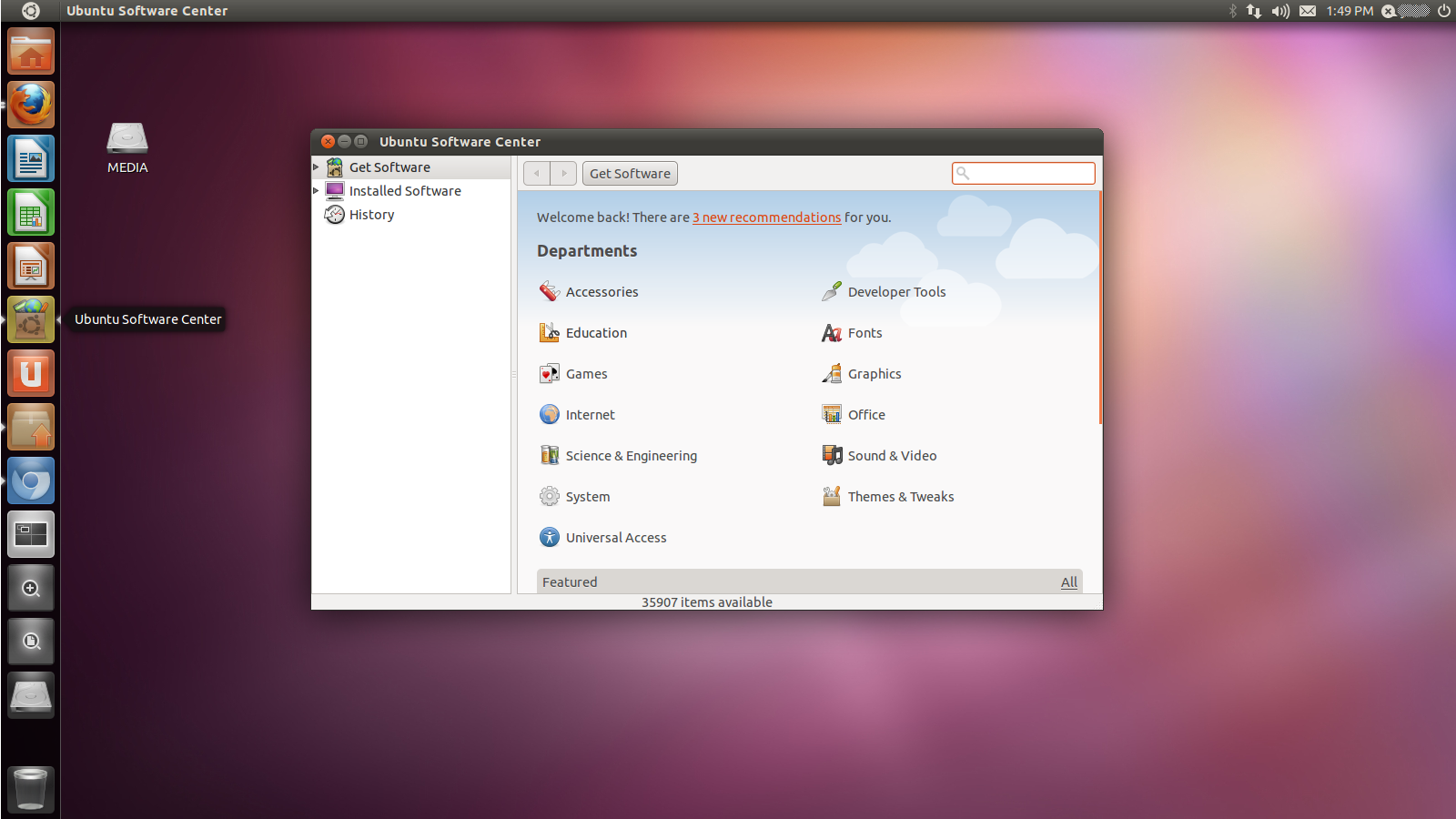
2. Next, use the Search box in the Ubuntu Software Center to find the software you need. You can simply type in "StartUp" and Search will give you choices. StartUp-Manager is usually the first one:

3. Click on the entry for StartUp-Manager to select it. Once you click on the Install button, you'll be asked for your password:

4. Key in your password to authorize the install:

5. You'll be able to check on the progress of the download while it is running:

6. After it is installed, where do you find it? Unlike previous versions on Ubuntu, where clicking on the Ubuntu logo will bring up a list of applications, 11.04 brings up a Search box instead of a huge list. I'm not a fan of it, but this may be easier for some people. Type in "Start" or "Startup" in Search and you should see StartUp-Manager listed first. Click on the icon to launch:

7. StartUp-Manager will perform a few tasks in the background, basically scan and create a list of items you can configure for boot options:

8. Once StartUp-Manager is done polling the system for the information it needs, you can toggle the choices to your liking. In the sample below, I chose to shorten the Timeout to 5 from the original 10 seconds. I also chose to have Windows 7 as the Default Operating System. I'm not the only one using this PC, after all. And the wife prefers Windows 7 still. Everything else was pretty much left to the default values. After you're done, just click on the Close button:

9. StartUp-Manager will do the editing of boot options in the background:

10. Reboot and check to see if the options you set are to your liking. Just repeat the process of launching StartUp-Manager and clicking on different choices if you feel the need to change anything.
 So much like everything Linux, there is a the terminal way of doing things and sooner-or-later an all-click, painless, graphical solution that some generous geek out there was kind enough to contribute to the community of users. Both methods are usually just as effective as the other. It's just nice to know that even in customizing your Linux install you are given choices. Choice matters for open-source and it's community of users are a great resource for giving every user in it that choice. Whether it be a way of doing things or different applications doing the same basic thing, there is choice. And that is where the crux of it all is!


 Posts
Posts


